

For Your Engineer
Codebase & Preview Setup
Configure the repositories, commands, services, and environment variables your team’s task sandboxes use.
Overview
Each task runs on its own branch in a sandbox with its own agent. Configure the sandbox once for the team.
Add the repositories, test environment variables, and services the app needs. Provide setup scripts and onboarding instructions, or use the README. The setup agent can write missing scripts.
Follow Quick Setup to install the GitHub App and connect repositories. Then use this page to configure their sandboxes.
Stacks
A stack groups repositories and their sandbox settings. The default stack contains every repository in your workspace. Create another stack with New stack under Settings → Stacks when agents need a smaller set, such as the marketing site's repositories.
Each task boots a sandbox with every member repository cloned side by side under /home/user/workspace/<repo-slug>, so an agent can change the API and the
frontend in one run.
- One pull request per changed repository: a task that touches two repositories opens two PRs. The task is Done once every remaining PR merges; a PR closed without merging stops counting. See Tasks for the full lifecycle.
- Task prefix: each stack numbers its tasks with its own prefix, like
WEB-42. Edit it on the stack's General tab. - Base branch: agents create branches from each repository's default branch and target it with their PRs. Set an override on the Repositories tab when a team uses another integration branch, such as
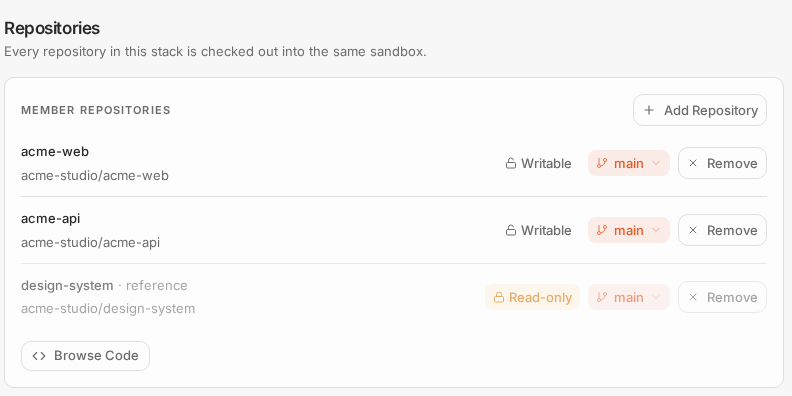
develop. - Read-only repositories: set a repository to Read-only on the Repositories tab to provide context without allowing edits or PRs. Use this for a shared schema or design-system repository.
The stack page
Open Settings → Stacks and choose a stack. Use its tabs to configure the following:
- Snapshots: watch the snapshot build, force one with Rebuild (Build Snapshot before the first one exists), and read the build log via Logs.
- Sandbox: watch the primary sandbox and its services. Use Restart Services or Replace Primary there.
- General: rename the stack and edit the task prefix.
- Repositories: add or remove member repositories, set a per-repository base branch, toggle Writable/Read-only, and open Browse Code. After adding a repository, click Re-run setup on the Setup Preview tab: a setup command written for the original repositories won't install the new one.
- Setup Preview: the sandbox configuration, covered in The Setup Preview tab.
- Guardrails: limit which tools agents may use on this stack. See Tool allowlists.
- Skills: standing instructions agents load on every run. See Skills.
- MCP: give agents external tools like Figma or Sentry. See MCP Connectors.
- Customize AI provider: opens Workspace Settings → Agents → AI provider access, where owners and admins set the workspace-wide Claude provider credentials every stack inherits. The sandbox network lives in the Egress network block on the same page.
Use the folder scope picker to limit a repository checkout. You can expand its directory tree, use the full-screen control, and add folders later when an existing checkout needs more context.
Setup Preview, Guardrails, MCP, and Customize AI provider require an owner or admin. Other members see disabled tabs with a lock and an ADMIN badge. If they open those URLs directly, Gleamrun redirects them to General. The Sandbox tab's Restart Services and Replace Primary buttons also require an owner or admin.
The Setup Preview tab
Click Set up my preview to let the preview setup agent inspect the stack and configure its services. After the first run, the button reads Re-run setup, or Try again if setup failed.
The agent opens pull requests when setup needs repository changes. Merge them with Merge in the setup session, from the Review Hub, or on GitHub. Setup completes after required PRs merge and its checks pass. A backend-only stack can complete without a browser preview.
The form locks while setup runs. Use Open Setup to follow progress in the setup session. The fields below explain the configuration the agent saves.
Until setup finishes, New session asks members to finish it first. They can choose I don't have or need a preview to start a session anyway.
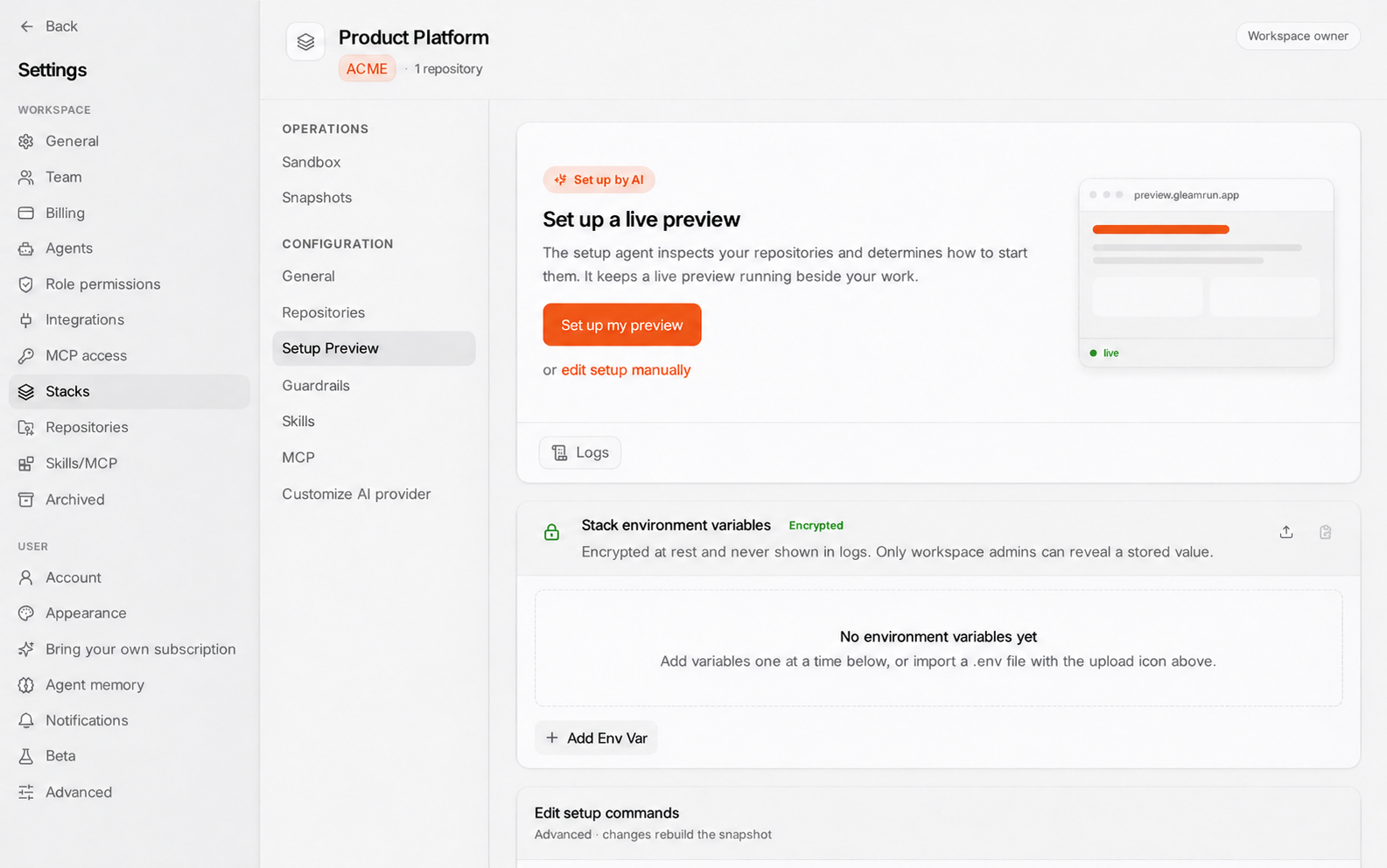
The person who started setup finds it under Recent in the sidebar as Set up your preview. In the setup session, use the artifact picker:
- Preview: try the app the agent configured.
- Pull Request: review the setup PR, its status, and its verification screenshots.
- Configure: fix what Issues reports first, then read Findings, Services, Secrets, and Verification. View Issues in the header opens it after a stopped run.
When setup is done, the chat shows You're all set; choose Start a new session to begin work.
Replace Primary on the Sandbox tab replaces the primary sandbox and can interrupt Chat and Plans until it recovers. Snapshot builds run separately.
If an added repository shows needs preview setup, read its reason and use Edit setup or Re-run setup to include that app.
Sandbox size Standard (8 GB) | XLarge (16 GB) default: StandardChoose the compute size for future task turns on this stack. Changing it rebuilds the snapshot in the background. Tasks already running keep their size until they finish.
Every repository adds cloning time to the snapshot, and the setup command runs at each task launch. Include only repositories the work needs. Choose XLarge (16 GB) if installs, builds, or tests exhaust Standard’s memory.
Setup command string Use this command to install dependencies, generate code, and seed data. It runs in /home/user/workspace during snapshot builds and again when each task sandbox boots. Keep it fast and safe to repeat. Prefix repository paths with their slug, since each clone lives at /home/user/workspace/<slug>: cd web && npm ci.
Test command string The command agents run to check their work after opening PRs. Fixes use new commits on the same pull request. If this field is empty, agents leave type checks, lint, tests, and production builds to CI. Verification screenshots, videos, and other applicable evidence still run.
Agent instructions string Standing rules injected into every agent run on this stack: "Always use Vitest", "Never
touch gen/". Applies from the next task turn. For longer or reusable guidance,
prefer Skills.
Services array (max 15) Each development server gets a live preview URL. Configure these fields for each service:
- Name: lowercase, unique within the stack.
- Command: optional; leave it empty to expose a port that another service starts, for example when the setup command runs docker.
- Port: unique within the stack.
- Working directory: relative to
/home/user/workspace. - Web: shows the service in the preview switcher.
See Example service setup for the rules that matter.
Environment Variables object (max 500 keys) Gleamrun writes these values to /tmp/.env in every sandbox for the setup command,
services, and agents. To replace a value, enter a new one. To delete a key when saving,
remove its row. Use the import button to load a .env file.
Saved values are masked in the UI. Owners and admins can reveal them, and every agent on the stack can read /tmp/.env. Use staging credentials rather than production secrets.
Host redirects
The Host redirects section lists vendor hostnames that use a stand-in service inside preview and task sandboxes. The setup agent adds redirects when it configures a stand-in. Turn a redirect off to use the real service. Each change saves separately from the sandbox form.
Example service setup
Service 1
  name:       web
  command:    npm run dev -- --port 3000 --host 0.0.0.0
  directory:  web
  port:       3000

Service 2
  name:       api
  command:    bun run dev
  directory:  api
  port:       8080

Service 3
  name:       pgadmin
  command:    (empty: docker starts this in the setup command)
  port:       5050
Follow these rules when configuring services:
- Run in the foreground. Gleamrun supervises the process and restarts it if
it crashes. Don't background it with
&. - Bind
0.0.0.0, not localhost. Most dev servers default to localhost. The preview proxy cannot reach that address, so the preview keeps loading even when the app runs. - Check the directory in monorepos. Start the path with the repository slug:
web, orapi/packages/backend. "No package.json found" means the directory is wrong.
Debugging a preview that's already broken? Match the symptom in Troubleshooting first.
Per framework, the flag that makes the dev server bind 0.0.0.0:
| Framework | Make it bind 0.0.0.0 |
|---|---|
| Vite / SvelteKit | npm run dev -- --host 0.0.0.0 |
| Next.js | next dev -H 0.0.0.0 |
| Create React App | HOST=0.0.0.0 npm start |
| Rails | rails server -b 0.0.0.0 |
| Django | python manage.py runserver 0.0.0.0:8000 |
| Flask | flask run --host 0.0.0.0 |
Ports must be unique per stack, and 49983, 49900, 49901, and 50005 are reserved for the runtime.
Agents can build tasks without configured services, but those tasks have no preview link. Confirm that the preview loads before handing the setup to teammates who need to test changes.
QA pull requests with the preview
A QA automation runs a pull request in the preview, captures its changed views, and posts screenshots on the PR. To enable one, open Automations in the left sidebar. Select Templates, then choose Use Template:
- QA existing PRs: verifies new pull requests and drafts when they are marked ready. It reads the diff before starting a sandbox. For backend-only changes, it stops and posts a comment that nothing user-visible changed. It skips bots and pull requests already tracked by a task, and it never changes code.
- Gleamrun GitHub PR bot: responds to
@Gleamruncomments on pull requests. The agent checks out the branch, follows your request, and replies. Your request can include pushing commits. To request verification, comment@Gleamrun capture verification screenshots.
Choose the stack whose preview should run. Each automation runs on one stack and watches every repository in that stack when no connection is selected.
Use Template fills the editor without saving. Choose Save & activate to enable the automation, or Save draft from its menu to save it without activation.
Guides, in the user menu at the bottom of the sidebar, tracks this workflow's prerequisites as they change: a connected repository, a setup command, a preview service, and an active QA automation. The QA your changes card turns Ready when all four are available.
Snapshots & the primary sandbox
- Snapshot: a prepared VM image with cloned repositories and the setup command already completed. Task sandboxes boot from it in seconds, avoiding a full clone and install at every launch.
- Primary sandbox: the stack's persistent VM. It runs read-only operations (like Plans and Chat) so users don't wait for a new task sandbox, and hosts a preview for the base branch, pulling new commits a few minutes after a push.
- Rebuild: changing the sandbox size rebuilds the snapshot; force one with Rebuild on the Snapshots page, and read the build log via Logs next to it.
- Failing setup command: blocks every task launch with "Workspace setup failed". Fix the command or select Re-run setup. The setup agent can run even when a broken command prevents task launches.
- Replace Primary: use this on the Sandbox tab when the sandbox is unresponsive and Restart Services did not help. It discards the primary sandbox and rebuilds it from a clean checkout.
Browse the connected code
Choose Browse Code on a stack's Repositories tab to inspect the repositories and folders agents receive. If an agent cannot find a file, first check the repository, base branch, and folder scope here. Browse Code reads the connected base branch. Use the task's Files view or agent session to inspect its task branch.
What saving the Setup Preview form does
- Changing Services or Environment Variables restarts the primary sandbox's services. The form footer shows a restarting indicator, then "Services restarted". The change also marks the snapshot stale. The next task launch rebuilds it with the new services and variables.
- Changing the Setup command re-runs the full workspace setup on the primary sandbox and marks the snapshot stale; the next task launch rebuilds it automatically.
Good to know
| Fact | Consequence |
|---|---|
| Preview URLs are unguessable, public by default | Anyone with the link can open it. Set a password under Setup Preview → Password protection to protect every preview in the stack. |
| Task sandboxes retire 7 days after launch once the task is Done | Active tasks keep their preview regardless of age. On finished tasks, old links show "Preview ended"; relaunch to get a fresh preview. |
Agent branches are ls/* | Your CI and branch protection apply as usual; merged PRs move tasks to Done. Gleamrun doesn't delete merged branches, so enable GitHub's "Automatically delete head branches" to keep the branch list clean. |
| Commit identity is configurable | Workspace setting: commit as the launching user or a custom bot identity. Decide before git blame gets confusing. |
| Per-task budget cap (default $500) | The agent stops when it reaches the task’s budget cap. |
The Setup Preview tab is locked for non-admins. If a preview breaks, send the task link to a workspace admin with the Troubleshooting guide.