

Core Concepts
Chat
Ask an agent to explain your codebase or investigate a question. Chat cannot edit code or open a pull request. For a change, it drafts a task for you to approve.
What to use it for
- "How does the signup flow work today?" before you plan a change to it.
- "Where do the prices on the pricing page come from?" before you ask for an edit.
- "Do we still send an email when an order ships?" to check that what an engineer told you six months ago is still true.
Ask a question to understand the current code. If you already know what should change, describe it and Chat drafts a task.
Where to ask
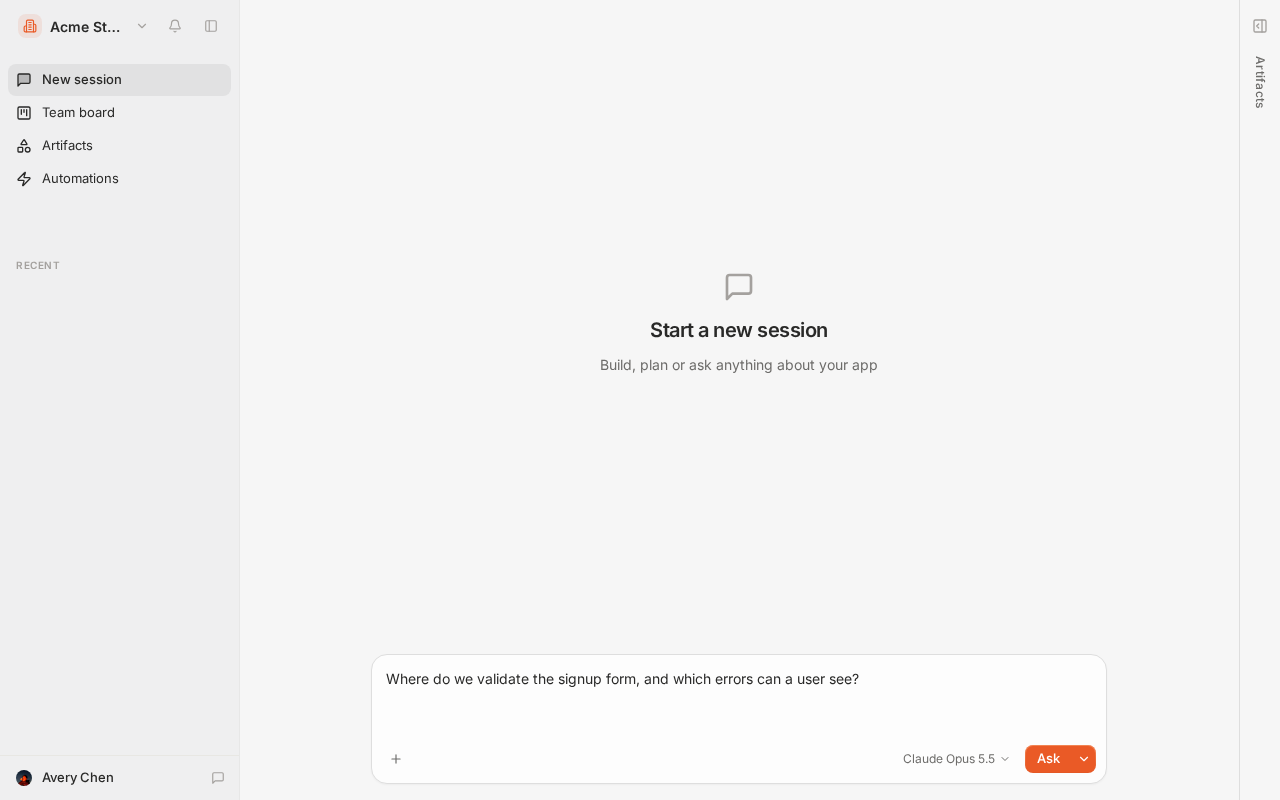
- New session: select New session in the sidebar, open the chevron beside the send button, and choose Ask. The button then reads Ask; type your question and send it. The thread opens on the same page.
- Recent: your threads, and the threads you are invited into, appear under Recent in the sidebar with your other sessions. Recent shows 5 sessions by default. Choose up to 20 under User Settings → Appearance → Recent sessions. See all opens the All sessions page, where you can search and filter every session.
- Slack: mention or direct-message the bot. See Use Chat from Slack.
There is no separate Chat tab or Chat page. Every thread is workspace-scoped and reads whichever repositories its stack contains. An old Chat link opens Home, and an old thread link opens its session.
Pinned sessions
To keep a thread above Recent, hover its row in the sidebar, open its options menu (⋯), and choose Pin. Pinning works the same way for every kind of session, including plans and Builds. Pinned sessions sit in the Pinned group, newest pin first. Pins are yours alone and follow your account to every browser. Choose Unpin to remove one.
What Chat can see
Chat reads the configured base branch of each repository in the thread’s stack. It cannot see unmerged branches. The checkout refreshes in the background after a push or when it is six hours old. Recent merges may therefore take time to appear.
If the workspace has multiple stacks, open the composer's + menu and pick one under Stack before sending the first message. The selection locks once the thread has messages. Start a new session to change it. A stack without repositories gives Chat no codebase to read.
Chat also receives the stack’s enabled MCP connectors (such as Sentry, PostHog, Grafana, and Figma) and skills. It can read your Gleamrun tasks, plans, automations, and connected repositories. To check which connectors are on, hover MCPs in the + menu; Manage MCPs opens their settings in place.
Use the model button beside the send button to change the engine and model. It starts on Gleamrun’s default Claude model. Your first message locks the choice for the thread, and follow-ups use the same agent session.
The picker has a tab each for Claude, Codex, and Pi. Codex uses Gleamrun credits or a ChatGPT plan connected in Settings → Bring your own subscription. Save an OpenRouter key there to use Pi; search the Pi tab to pick any model OpenRouter offers.
Narrowing a question
- @ mentions: type
@in the composer to insert a repository, file, folder, or connected MCP server and point the search straight at it. You can also mention recent tasks and your pinned threads, or search for a task by its reference. - Attach images: paste a screenshot to show the screen your question concerns.
- Follow-ups: continue in the same thread so the agent can use what it already read and focus on your next question.
Turning an answer into work
- Ask what exists today
Start with the current behavior, not the change you want. Read the answer and open one of the files it cites.
- Discuss the change
Describe the change you want. Chat investigates and drafts a Proposed task card with a title, description, and the files involved. It drafts on your first request. Continue the conversation to refine the same card.
- Set the owner and create it
Owner is editable on the card. Use Base to choose a task base branch before creating it. Choose Create & launch to create the task and start its agent with the engine and model shown on the card. Choose Create only to add it to the board, or Dismiss and confirm to discard it. Nothing exists until you accept the card.
- Launch later when you choose Create only
Open the task and press Launch Agent to have it built. See Ship Your First Task.
- Share the thread
To let everyone in the workspace read the reasoning behind the task, open Share this session in the header and choose Team.
The agent runtime blocks file edits in Chat. Approve the card to create a task on the board. Create & launch also starts a task agent in its own sandbox. If launch fails, the task remains on the board and the card offers Launch to try again.
If Chat finds a similar task, the card offers Join or Create follow-up, depending on that task's state. Use Create anyway for separate work. Create follow-up and Create anyway add the task without launching an agent.
Cards
Chat can also propose a stack skill, a project, or a message to another agent session. Review the card before accepting it. Related task proposals can include a project to group the work.
- Proposed task: one-off work. Choose Create & launch, Create only, or Dismiss. The card can suggest an engine and model. Use its model picker to change the launch choice. If you cannot use the suggestion, the card explains the fallback. This choice does not change your saved default.
- Proposed task update: changes to an existing task. Inspect the field and description changes, then choose Apply or Dismiss. If the task changed after the proposal, review the warning before choosing Apply anyway.
- Proposed automation: for work you want repeated, ask for a schedule, such as "every weekday morning, triage new issues". Review and edit Name, Task title, Prompt, Cadence, Timezone, Agent, and "Auto-merge on ready" on the card. Click Create & activate to create the automation and activate it immediately.
Let the thread drive its tasks
When a thread holds task cards, Start Task Driver appears above the conversation, and Chat may offer the same button on a Task Driver Mode card. Once started, the thread creates the cards, launches their agents, sends them prompts, and turns on auto-merge without asking. It acts as the person who pressed Start, including on tasks other people own, and never edits code.
A Task Driver banner above the transcript shows every viewer the counts. Its info button shows who started it and anything that needs attention. Stop, then Stop everything, ends the driver and stops the sessions it started.
When the answer is bigger than a single task, plan it visually instead and decide the shape of the work before anything is built.
Threads and sharing
- Private by default: a new thread is set to Only me. To share it, open Share this session in the header. Choose Team for all members, or add a teammate and press Invite to share it with selected people.
- Owner-only controls: only the person who opened a thread can change who sees it, rename it, or delete it. Deleting cannot be undone.
- Titles: the first message gives the thread an initial title as soon as you send it. The agent can refine the title after it answers. To rename it, choose Rename in the row's options menu (⋯) in the sidebar. Use Search sessions on the All sessions page to find the thread again.
- One turn at a time: messages sent while Chat works join a queue. Only the author can edit a queued message; anyone in the thread can remove it. Send now tries to steer the current turn when the session supports it. Otherwise, it stops that turn and sends the message next. Stop turn stops the current turn.
A turn runs on the server, so closing the tab does not cancel it. Reopen the thread to read the finished answer.
Use Chat from Slack
Once the Slack integration is connected, mention @Gleamrun in a channel or send the bot a direct message. This starts a Chat
session, and anyone can join the discussion.
- In a channel: the bot streams its progress as it works, then the answer.
- Same history: the exchange is saved to your web threads and tagged From Slack, so you can carry on in the app.
- Proposals: a change request posts a card with Create & launch, Create only, and Dismiss. After Create only, use Launch Agent when you are ready to start.
Automations are web only; from Slack, Chat answers and proposes tasks. For the full flow, including launching agents from a thread, see Working from Slack.
Related
- MCP Connectors: give Chat Sentry, PostHog, Grafana, and Figma.
- Planning Visually: when the answer is bigger than one task.
- Guardrails & Roles: the tool limits that make Chat read-only.
- Slack: connect the integration.