

Core Concepts
Console
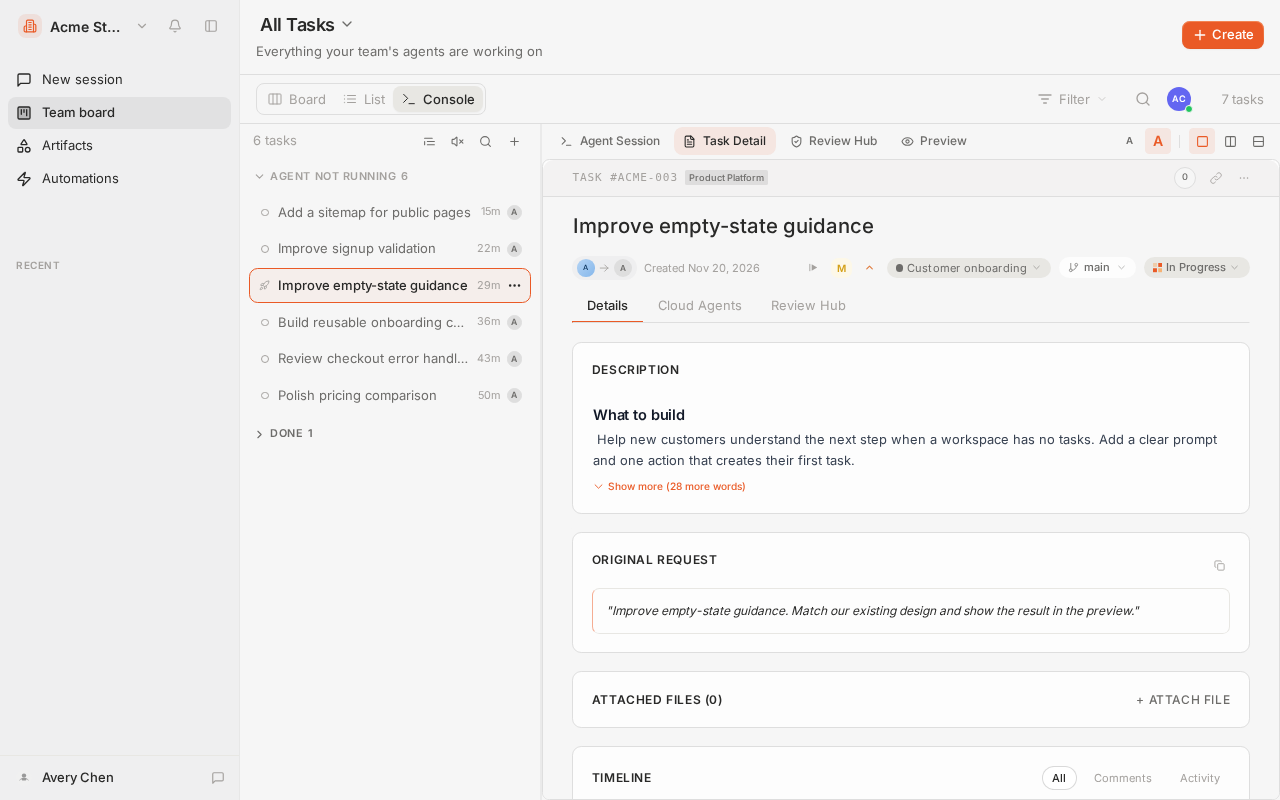
Use Console to supervise several tasks at once. Keep the task list visible while you arrange agent sessions, reviews, previews, files, and terminals beside it.
Open Console
Open Team board in the sidebar and switch from Board or List to Console. Select a task to open its details and, when available, its agent session. Use the row to launch an agent or open the pull request. Hover a row with a preview for a card with Open live preview; on a touch screen or keyboard, use the row's Details button. An auto-merge indicator shows when a task can merge automatically after the coding agent is ready and a pull request is available. Find other controls in its Task actions menu (⋯).
Read the task list
Rows are grouped into Needs attention, Agent working, Agent ready, and Agent not running. A collapsed Done section contains the 25 most recent completed tasks. Select Show more to load another 25.
Agent not running starts collapsed unless it is the only section with rows. Backlog tasks are not listed. Use each row's status, agent indicator, pull request, and short recap to decide which task needs attention.
Work with panes
- Task: description, properties, activity, and launch controls.
- Agent session: the transcript and message box for watching or steering the run.
- Review Hub: the selected task’s pull requests, checks, findings, and verification evidence.
- Preview: the app running from that task's sandbox. Stacks with several web services can open a pane for each service.
- Files: one pane per file you open from a link in the agent transcript, showing the file or its diff.
- Terminal: a shell in an eligible task sandbox for hands-on debugging.
Use the layout and size controls to give the active pane more room. Drag pane dividers when you need a custom split. Your layout is kept for the next time you open Console in that browser.
Launch and steer work
Launch from the selected task or its row. Choose the engine and model in the launch dialog. Select Set as default to reuse that choice for future launches from any page.
During a run, use the session pane to queue a follow-up or send an urgent correction. See Talking to the agent for the controls.
When a task already has a useful live session, steer that session instead of launching another agent at the same change. The shared transcript keeps the team aligned.
Use previews in Console
A preview pane follows the selected task and service. Open more than one preview when a stack has separate apps, such as a customer site and an admin app. If a service is missing, check the stack's Services configuration.
When Console helps
Use Console to supervise parallel tasks, test several services, or give frequent feedback to an agent. Use Board or List to organize the backlog.