

Core Concepts
Automations
Run work on a schedule or in response to a connected event. An automation defines the action to take and records each run in Activity.
How an automation works
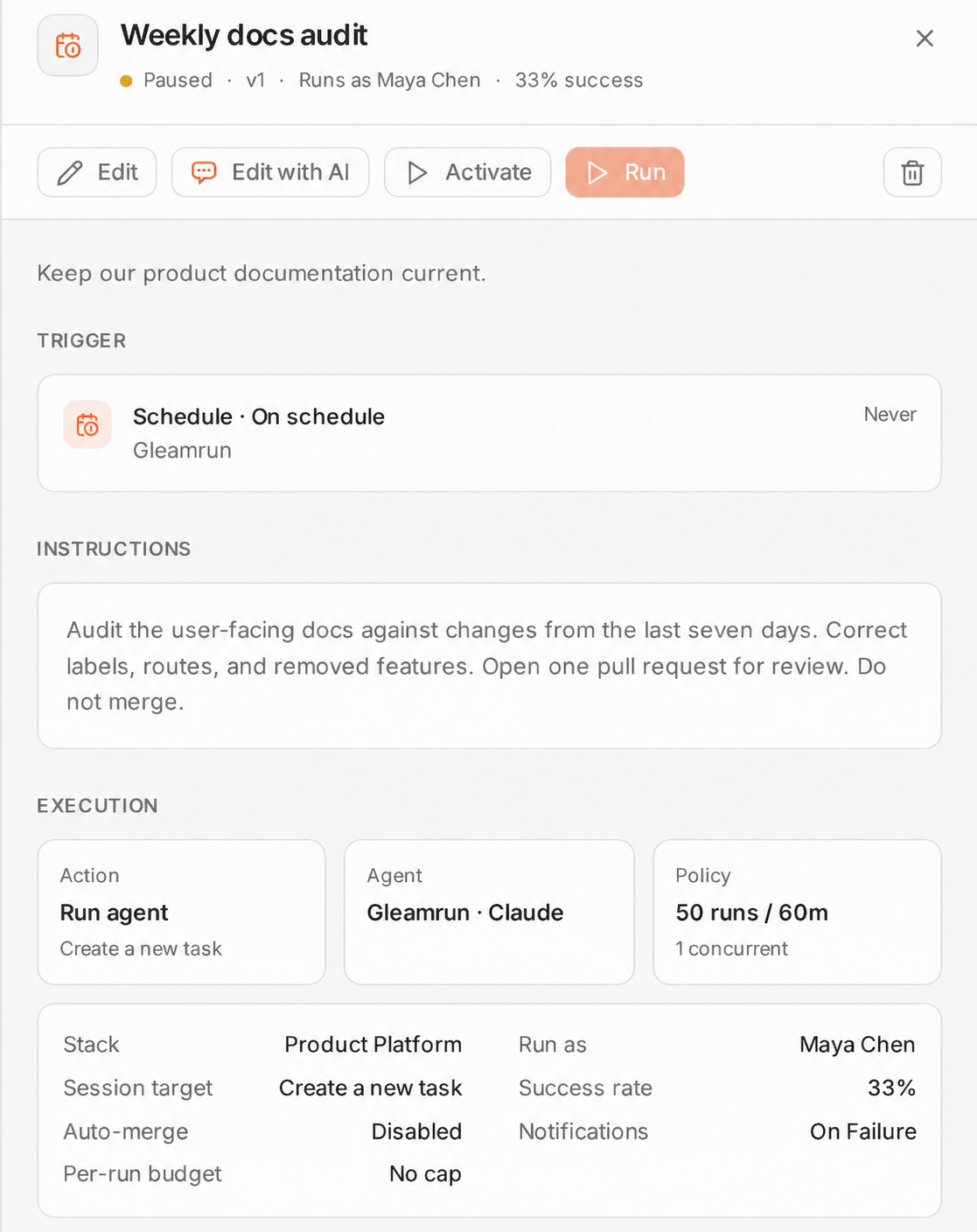
Every automation has four parts:
- Trigger: when it runs, such as a schedule, a GitHub event, a Slack mention, a Linear change, or a manual run.
- Conditions: optional rules that narrow which matching events count.
- Action: what the automation does. Choose Run agent, Create session, Post to Slack, or Triage task. Triage task runs an agent and names the task after triaging the event. Configure it by accepting a proposal in Chat.
- Policy: who it runs as, where sessions land, concurrency and run limits, notifications, budget, and whether pull requests may auto-merge.
Create an automation
- Open Automations from the workspace sidebar and press Create.
- Choose Create with AI to describe the workflow and review the proposed draft, Create from template to customize a proven workflow, or Build manually.
- Choose a trigger and add conditions that can be decided from the incoming event.
- Write instructions with enough context for the action to run unattended.
- Review the connections, permissions, limits, and side effects, then select Save & activate. Use Save draft in its menu to keep it inactive.
Name the expected result, the boundaries of the work, and what evidence should be produced. If a person must choose between two valid outcomes, keep that workflow manual.
Choose where runs land
- New task: creates separate work for every event. Use it when each event should be reviewed and merged independently.
- Existing task: groups related events on one task while starting a fresh session for each run.
- Existing session: sends related events to the live session when one exists. Use it when repeated events should continue one conversation.
Pull request events group by pull request. Other events can use a task key so related activity finds the same task.
For grouped runs, use Untracked work only and select Skip the run when a task already exists to verify or triage untracked work. Skipped runs record task_already_exists in Activity. Leave this off when a bot must answer follow-ups on existing tasks.
Choose who runs the work
Under Agent & identity → Run as, choose The automation's owner or The person who triggered it. The selected account supplies its engine credentials and name for tasks and commits. Manual, GitHub, and Slack triggers can identify the person. A schedule, bot, unmatched account, or person without suitable credentials uses the owner. The owner authorizes runs in either mode. An admin who edits the automation does not become its owner.
Set safe limits
Limit noisy or expensive triggers with a maximum run count, time window, concurrency, and optional budget per run. The run-as user supplies permissions and an eligible agent subscription. Select Let an agent merge pull requests only when the work has clear tests and review criteria.
Review activity
Use the Activity tab to inspect each event's status, run-as identity, time, duration, and resulting session. Open Details for skipped or failed runs.
Run now in the row menu and Run in the detail panel start real runs. They are available only on active automations with a manual or schedule trigger. Event-only automations wait for their event.
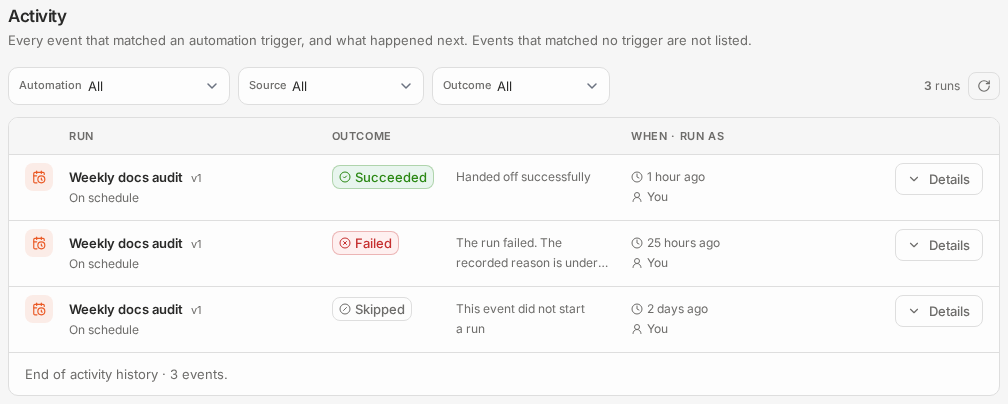
An automation marked Needs attention can retry after a cooldown. Inspect Activity and repair credentials or permissions before retrying. Saving the editor identifies invalid fields when configuration is incomplete.
Pause, edit, or archive
Use Pause while you repair a connection or revise instructions. Select Activate to resume. The header shows the active version, such as v1, and a draft badge for unpublished edits. Your draft replaces the active version only when you activate it. Activity records which version each run used.
Archive a workflow to remove it from the active list and keep its history.
For the agents and models used by runs, see Agent Engines & Subscriptions.