

Core Concepts
Agents & Previews
Launch an agent to build a change in the task's own cloud copy of your product. Watch its work, test the preview, and review the pull request it produces. The change reaches your product only after a merge.
New here? Ship Your First Task walks the whole loop end to end.
Launching an agent
Open the task and press Launch Agent. Configure the run in the dialog:
- Engine: choose the agent that builds the change. Claude and Codex use Gleamrun credits without additional setup. To run Codex models included in your ChatGPT plan on that plan, connect ChatGPT in Settings → Bring your own subscription. Pi appears after you save an OpenRouter key and bills that key rather than Gleamrun credits.
- Model: the model the engine runs. Claude and Codex list newer models first. The dialog starts on your saved default, otherwise on the model you last picked in this browser. The credit-lane defaults are Claude Opus 5.5 and Codex GPT-6.1-Sol. A connected ChatGPT plan uses GPT-6.1-Sol when it includes that model, otherwise its own default. Claude Opus 5.5 costs less per token than Opus 4.8. Claude Fable 5.2, Claude Fable 5.1, Claude Fable 5, Claude Opus 4.8 (Fast), and GPT-6-Astra are the premium tiers, and GPT-6-Luna is the low-cost Codex tier. For Pi, search the model list to pick any model OpenRouter offers.
- Set as default: reuse this engine and model on every future launch.
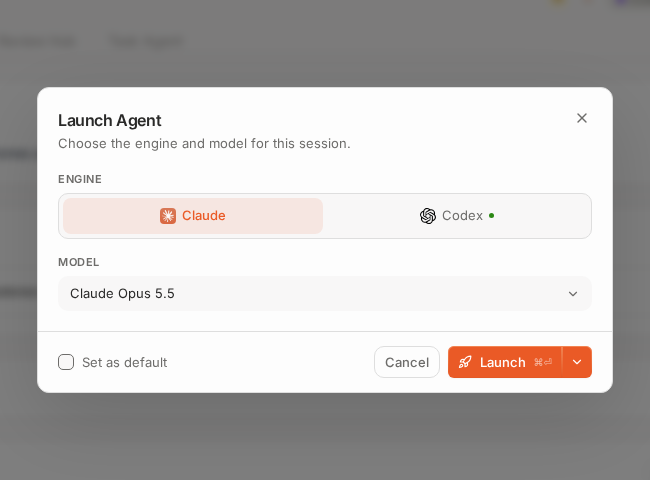
Press Launch or ⌘ Enter to start the run. To open the session immediately, use the arrow beside the button to select Launch and open session. The dialog remembers this choice. The run checks out every repository in the task's stack.
Relaunching a task that already has a branch adds This run:
- Follow up: continues on the existing branch and commits to it. Type what the agent should do next in Prompt, or leave it empty and send your first message in the session. It does not open a pull request.
- Start from the task: runs the task's description from scratch and opens a pull request. If the previous sandbox is running or parked, the run reuses its branch. Otherwise, it creates a new branch and leaves the old one untouched.
Configure the root directory, setup command, services, and environment variables once per stack in Codebase & Preview Setup. Every run inherits them.
What happens during a run
- The task moves to In Progress and a branch is created:
ls/<task number>-<title>-<short id>. Every repository the task spans uses that same branch name. - A sandbox boots from the stack’s prepared snapshot, checks out the task’s selected base, and runs your setup command. Set the base in task details before launching. The agent edits this copy, never the version your customers use.
- The agent reads the code, makes changes, and streams what it is doing and why. Open the task while a run is active and it lands on Cloud Agents.
- The preview initially shows the stack’s primary sandbox. Once the task preview is ready, it switches to the task’s sandbox. Use the address bar to choose a page.
- The agent commits, pushes, and opens one pull request per repository it changed. Checks and verification follow after the pull request opens. The task moves to In Review when the coding agent is idle.
If a run finishes without a pull request, open its session and ask the agent to create one. The absence of a pull request does not mean the run is stuck. When Ask before opening a pull request is on for you, the agent leaves it to you: press Open PR in the session header.
Inside the agent session
Open the session to follow the work, test the preview, or send directions:
- From the task: open the Cloud Agents tab and press Open Session on the run.
- From the board or the sidebar: click the task card, or the session under Recent. It opens the task's session on the New session page. A task without a session opens there with Start agent.
On the New session page, the chat sits on the left and the artifacts panel on the right. Use the panel's picker to switch between Preview, Pull Request once the agent has changed code, and Verification when the task has screenshots or videos but no pull request yet. The panel turns to the pull request when it opens, unless you chose another view for that session.
The session page that Open Session opens puts the agent transcript on the left and your running product on the right. Use the layout controls to rearrange the panes. The message box stays with the transcript.
Open the Review Hub pane to inspect the linked pull requests, checks, and findings beside the transcript. It uses the same task review as the Review Hub tab.
Reading what the agent did
The status pill at the top shows Starting..., Working..., Ready, Completed, Failed, or Stopped. Long gaps in the transcript are normal, and closing the tab does not stop the agent. Each run starts with your stack’s Skills installed.
Use the transcript to follow the agent’s progress and inspect its actions:
- Plan: the agent's own checklist for the task, with a count of how much of it is done.
- Thinking: expand this to understand the agent's choices rather than its changes. After a piece of work finishes, the reasoning collapses to a one-line summary.
- Tool rows: each action has a row. Expand it to inspect its exact command under Input and its result under Output. Consecutive actions collapse into one expandable steps row.
- files changed: a live count above the message box, with added and removed line totals. Click a file to read its before and after without leaving for GitHub.
Session diagnostics (beta)
Enable Show Debug UI in User Settings → Beta to inspect session costs, model details, and tool timings. The setting is off by default. The gauge beside a prompt opens its Prompt weight breakdown, with estimated composition and total tokens.
When the agent waits
An agent can wait for a task, pull request, or session event and resume when it occurs. The session shows what it is waiting for and when the wait expires. Expand the row to read its continuation note. Multiple waits share one expandable summary. Cancel removes a wait.
When the agent asks a question, choose an option or select Type another answer…. For a question with several selections, choose the options and press Answer. Your answer resumes the agent. A question with a countdown uses its recommended option when the countdown ends. Use Skip question when you want the agent to continue without an answer.
Talking to the agent
- The box never blocks: type during a run. Messages wait in the queue while the agent works, as the placeholder indicates. Press Enter to send or Shift Enter for a new line.
- Queued: messages appear above the box. All teammates see the same queue, order, count, and sender avatars. Only the author can edit a queued message. Gleamrun sends each message when the previous piece of work finishes.
- Send now: use this to correct an agent that is going in the wrong direction. On sessions that support live steering, it tries to send the message into the current turn. If steering is unavailable, it stops that turn and sends the message next. Read the control’s tooltip for the behavior available in this session.
- Attach files: add images, fonts, documents, and data. You can also drag them onto the pane or paste them.
- Stop turn ends the piece of work in progress and leaves the session open. Nothing is lost, and typing "continue" picks it back up.
- End session: choose this from More actions (⋯) to end the run and shut down its cloud copy and preview. Anyone who can see the session can do this, as well as send follow-ups and use Stop turn.
Stopping a turn or ending a session preserves pushed work and the task's transcript. See Steering Agents Together to join or hand over a run and coordinate work on the same screen.
When the run is done, View PR and Merge sit in the same top bar.
The live preview
In the session, open Preview beside the transcript. From task details, open Cloud Agents and the run card’s More actions menu (⋯). Choose Show Preview to see the preview, or Open Session on the card to open the agent session.
Driving the preview
When a stack runs several web services, their tabs appear above the address bar. Each tab shows the service name and port. Click a tab to switch services.
Use back and forward to navigate. Enter a bare path in the address bar. Reload bypasses the cache. Open the preview in a new browser tab to use your own devtools.
The sandbox needs its own API keys and database, plus development servers configured to accept its hostname. Each task gets a fresh address, which is usually why sign-in fails. Providers such as Google redirect only to addresses registered in advance.
For a page that needs an account, choose Open Sign-In Page. If sign-in still fails, ask an engineer to configure the sandbox using Codebase & Preview Setup.
What to expect
- No services, no preview: configure a service for the stack to get a preview. Without one, the agent can still run and open its pull request.
- Several services, several previews: each is a separate URL, named by service and port in the service tabs.
- Still starting is not broken: the preview runs separately from the agent. The pane shows that the app is starting and displays it automatically when ready. The agent continues while the app starts.
- Paused, not dead: the sandbox can pause after inactivity. Send the agent a message to wake it.
- Unguessable, not private: anyone holding a preview URL can open the running app unless a preview password is configured. Keep the links inside your team and use test data.
- Cleanup after Done: active tasks keep their sandboxes. Once a task is Done, a sandbox older than seven days is eligible for cleanup. Task database branches are deleted seven days after completion. A remaining sandbox may resume, but its deleted database cannot be restored by resuming it.
What the agent hands over
- A branch:
ls/…, created at launch and shared across every repository in the task. The agent links the pull requests it opens. A pull request you open yourself links only when you add it with Link pull request on the task. - One pull request per repository it changed: a single-repository task gets one. A task spanning three repositories but touching two gets two, and turns Done once one has merged and the other is merged or closed.
- Verification: screenshots and short videos of the UI the agent touched, covering the change itself and the routes that lead to it. Shots of those routes carry an Entry tag. They appear in the Verification strip in the Review Hub, and are mirrored into a comment on the pull request.
The Review Hub tab shows linked pull requests, and a task that is In Review or Done opens straight onto it. Review & Merge covers what it shows and who can press merge.
Related
- Steering Agents Together: follow-ups, the shared queue, and interrupting a turn.
- Codebase & Preview Setup: the setup command, services, and environment variables every run inherits.
- Many Tasks, One Base: what happens when several agents run at once.
- Troubleshooting: previews that never load and runs that fail to start.