

Working as a Team
Billing & Seats
A workspace has one plan and a number of seats. Owners and admins can change both in Workspace Settings → Billing.
Connect your personal Claude, Codex, or OpenRouter plan in User Settings → Bring your own subscription to fund your turns with it. Manage the workspace’s plan, price, and seats in Billing.
Plans
| Plan | Price | Members | Credits |
|---|---|---|---|
| Free | $0 | 1 member | No usage credits |
| Pro | $40/seat/mo | Up to 50 members | 10M credits per seat per month |
| Enterprise | Contact sales | Agreed with sales | Agreed with sales |
Free includes no Gleamrun credits. Connect a personal agent subscription in User Settings → Bring your own subscription to run agents, planning, and Chat. Without one, these actions open an upgrade prompt, except during the starter allowance.
In the first workspace you create, Gleamrun funds $30 of AI usage shared by preview setup, tasks, plans, and Chat. Tasks, plans, and Chat use the starter models: Claude Opus 5.5, Claude Sonnet 5, GPT-6.1-Sol, and GPT-6-Luna. After the allowance ends, actions that need Gleamrun credits open the upgrade prompt.
Each person can create 5 tasks and plans over a rolling seven days on Free. At the limit, creation opens an upgrade prompt until the oldest item leaves that window or the workspace upgrades to Pro. Other actions that spend Gleamrun credits stay blocked, regardless of the displayed balance.
What a seat buys
- Room for one more full member: the purchased seat count caps your full seats. Pending invites do not use a seat; an accepted one takes a full seat if one is open, otherwise a free seat.
- Credits for the whole team: each seat adds 10M credits a month to the workspace’s shared pool. Any member’s work can use that pool, including a member who uses more than others.
- Billing for the remaining period: added seats receive prorated charges and credits for the current billing period. Credits arrive when payment completes. Full monthly charges at $40/seat/mo and full monthly credits apply from the next renewal.
- Minimum seat count: you cannot reduce seats below the number in use. Remove members before lowering the count.
Free seats
On Pro, a member has either a Full seat, which uses one of your purchased seats, or a Free seat, which uses none. Everyone who joins, by email invite, an approved join request, Slack or Microsoft Teams, takes a full seat if one is open and a free seat otherwise. Joining never charges the workspace card.
- 5 tasks or plans a week: a free-seat member can create up to 5 tasks or plans in that workspace in any 7 days. Reading, commenting and reviewing stay unlimited. A meter at the bottom of the sidebar shows how many are left and when the allowance resets.
- Their own subscription is not used there: a connected Claude, ChatGPT or OpenRouter account still works in their other workspaces, but on a free seat their runs use the workspace's credits and count toward the weekly limit.
- Free members stay free: when a full seat opens, the next person to join takes it. To give it to an existing member, open their role menu and choose Full seat in Workspace Settings → Team. Members can press Request a full seat, which emails the workspace owners and admins.
- Moving people down: choosing Guest in a member's role menu moves them to a free seat and frees a purchased one. Owners and admins must keep a full seat.
Free seats exist only on Pro. Gleamrun staff (@gleamrun.app) take no seat at all.
Adding a seat
From Settings → Billing
Open Workspace Settings → Billing and find the Seats card. It shows usage, price per seat, and credits per seat. Increase the count, up to 50, to see the added seats and total price on the button. For example, it shows Add 1 seat followed by the price. Press the button to pay in Stripe Checkout, where you can apply a promotion code.
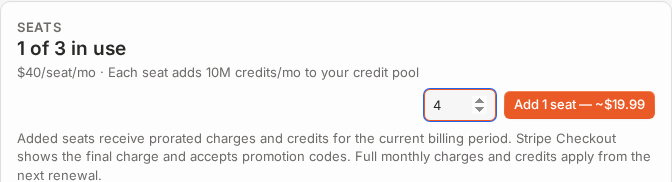
Lowering the number takes effect at once. Nothing is refunded for the current period, and next month's top-up shrinks to the smaller seat count. Credits already in the pool stay there.
From an invite
You do not have to visit Billing first. In Workspace Settings → Team, add the person as usual. Sending an invite is free. When they join, they take a purchased seat if one is open. If every purchased seat is in use, they join on a free seat instead, and nothing is charged.
On Free, which is a single-member plan, the same action offers Upgrade to Pro to invite teammates? instead and opens checkout sized for your current members plus the person you are inviting. Send the invite from the Team tab once checkout finishes.
This message means the seat change request failed. Try again from Settings → Billing, or ask an owner or admin to retry. See Troubleshooting. Stripe Checkout handles card problems. If you leave Checkout without paying, you are not charged.
Payment failed
A Payment failed warning shows the failed charge details when available. Owners and admins can select Update card to open the payment portal and update the payment method. Members can select Review billing to inspect the workspace’s billing information and ask an owner or admin to resolve the payment.
Who can change billing
- Owners and admins: change the plan, buy seats, top up credits, and open the invoice portal.
- Members: see the Billing tab read-only. The page says so directly: only workspace owners and admins can upgrade, buy credits, or manage seats.
Roles are set in Workspace Settings → Team and explained in Review & Merge. If you are a member and an invite is blocked on a seat, the fix is to ask an owner or admin rather than to retry.
Changing plan
- Free to Pro: upgrade yourself from the upgrade control on the Billing tab.
- Cancelling: owners and admins press Cancel subscription on the Billing tab. The subscription ends at the end of the current period, and Undo cancellation reverses it until then.
- Earlier plans: workspaces on a plan that is no longer sold are managed as Enterprise and keep their monthly credits. Moving one to Pro can reduce those credits, so support coordinates the change.
- Enterprise: arranged with sales, not bought in the product.
Select Manage subscription & invoices to open the customer portal for invoices, receipts, payment method, and VAT details. To change the plan or seat count, use the Billing tab.